00:00:01,633 this is Jamie with bar I in this video
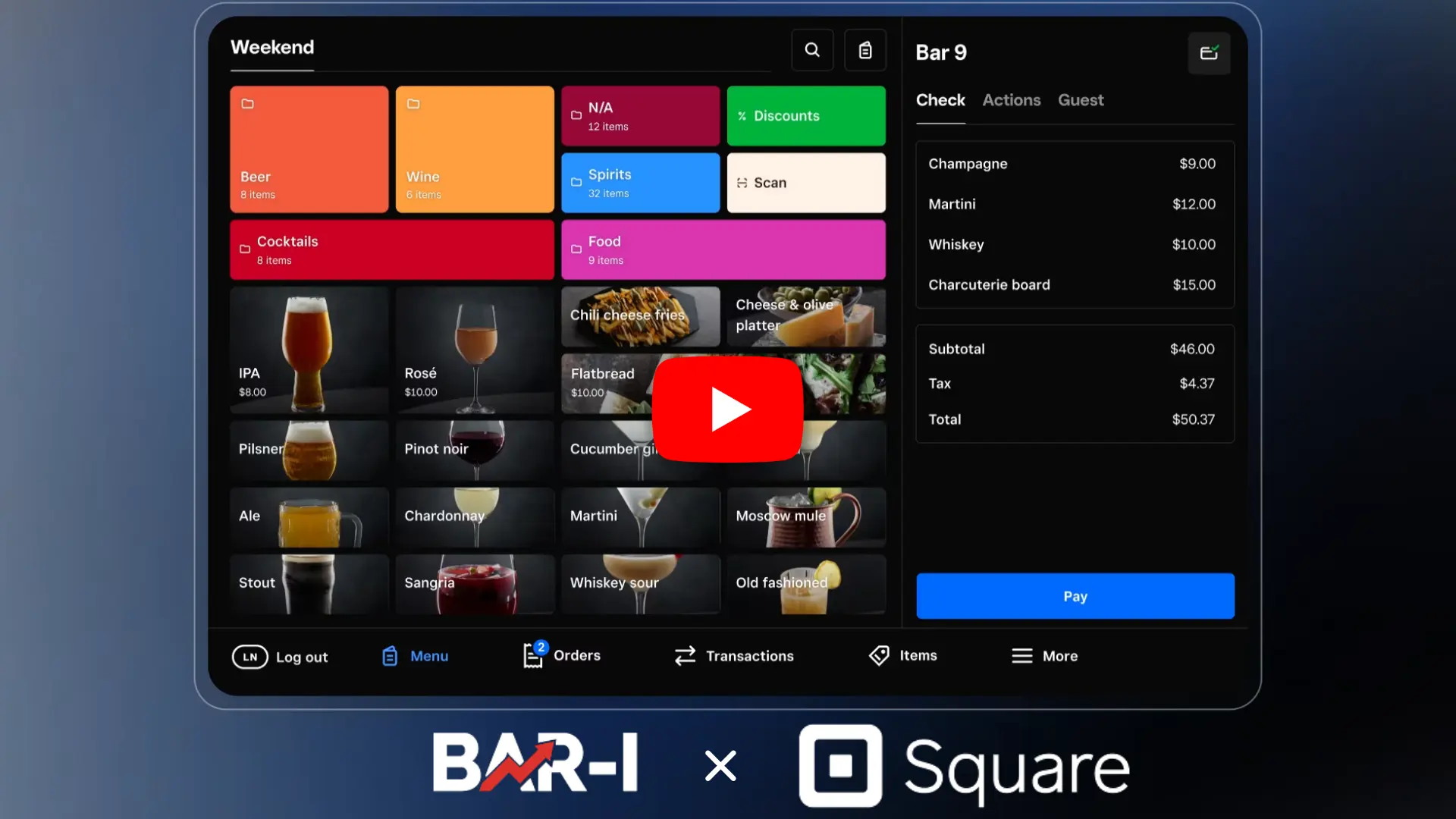
00:00:03,766 we're gonna show you how to run a square brand
00:00:06,366 point of sale report
00:00:07,866 ready for uploading into the bar I system
00:00:10,266 obviously the item I sales report is gonna show us
00:00:13,566 which buttons were pressed
00:00:14,666 and how many times so that we can write recipes
00:00:17,466 and calculate
00:00:18,633 precisely how many ounces of each product was sold
00:00:21,633 and the raw point of sale report is how we start that
00:00:24,966 so inside square login
00:00:27,766 and then come to the reports module
00:00:30,833 then we'll need to go to Item sales
00:00:35,066 and then we need to select the right date
00:00:36,966 so in this case
00:00:37,566 I'm running a month cause we're doing a setup all day
00:00:41,300 summary
00:00:42,666 display by is none filter by is none
00:00:45,766 close checks and then we'll click ahead and download
00:00:49,000 we want the summary it sounds like we want the detail
00:00:51,300 but the detail shows every transaction
00:00:53,400 minute by minute or second by second
00:00:55,566 we want the summary to show the total number of
00:00:57,800 for instance Tito sales in the period
00:00:59,833 so hit on summary
00:01:01,466 and then you can just go ahead and download this
00:01:04,433 to a given location
00:01:06,400 and then upload it into the Barry system
00:01:08,566 so that's how to run the Square Point of sale report
00:01:11,766 as always if you have any questions
00:01:13,000 feel free to reach out
00:01:14,466 I'll contact your account manager thanks for watching


.png)
.webp)
.webp)
.webp)